A decision model in the middle
SayOpen listens to a spoken sentence, works out which action you mean, and carries it out on a Mac. The interesting part is the decision: “which app?”, “which button?” and “is this even a command?” This is a walkthrough of the build from Manikk.ai’s reel, rather than a downloadable app or a complete installation tutorial.
Jev is TypeSafe AI’s System One model. Instead of writing a conversational response, it returns structured decisions and probabilities over the options supplied by the application. SayOpen uses that output to choose a defined action. The surrounding code still decides what is allowed and how to execute it.
The guide reports roughly 400 ms per Jev decision in this build. That is a measurement from the author’s setup, not a latency guarantee. Some requests took longer: the example log later in this guide took 1.2 seconds.
What you can say
| Where | Say something like |
|---|---|
| Apps | “Open Slack”, “open the app I make 3D models in” → Blender, or “Claude kholo”. |
| Inside an app | “Set effort to high” or “open the tab that needs input”. |
| Browser | Ask for a document by title, switch to a named tab, or click the first sign-in button. |
| Navigation | “Scroll down”, “scroll to the top”, “press escape” or “go to tab 3”. |
| Terminal | “Yes, trust this folder” or “option two” to select from an on-screen list. |
| Files | Name a file in speech, even when recognition slightly misspells its name. |
| Dictation | “Open Wispr Flow”, dictate, then “close Wispr Flow”. The build removes the stop phrase. |
| Mac controls | “Night mode”, “volume to half”, “skip this song” or “take a screenshot”. |
Chaining makes it feel immediate. “Open terminal, add a new tab and let me type” contains three commands. SayOpen splits at words such as “and”, “then”, “phir” and “aur”, and evaluates each clause separately. It can start the earlier action while the sentence continues.
Jev versus a rules engine
The author built a rule engine with patterns, app nicknames and spelling-distance matching in one day, then tested both approaches on the same 74 real sentences. Both used the same executor and actions; the decision layer changed. These are author-reported results from the supplied guide, not an independent evaluation. The additional app-opening tests are shown separately.
| Test | Jev | Rules |
|---|---|---|
| All 74 commands | 63 / 74 | 43 / 74 |
| Tabs and windows | 14 / 16 | 9 / 16 |
| System controls | 15 / 17 | 8 / 17 |
| Hinglish | 6 / 6 | 2 / 6 |
| Ignoring chatter | 8 / 8 | 5 / 8 |
| Open an app: 50 phrasings | 96% | 70% |
| Describe-the-app phrasings | 13 / 14 | 4 / 14 |
| Time per decision | ~400 ms | ~8 ms |
The trade-off matters: rules were faster. SayOpen uses a hybrid approach, handling exact, fixed phrases such as “scroll down” and “press escape” directly in code, and using Jev for less predictable phrasing. This test does not establish performance across other users, accents, computers or applications.
Seven small decisions, one workflow
Choose the action
Route the clause to one of 32 actions in this build, such as open, click, scroll, search, note or volume.
Choose the app
Rank the installed apps, including cases where someone describes an app instead of naming it. The author’s machine had 115 apps.
Extract the content
Pick the words to keep in a reminder or note, rather than turning the entire spoken command into its contents.
Check the intent
Distinguish a command from conversation. “I love music” should not launch the Music app.
Choose a control
Read the available on-screen controls and choose the one that advances the requested task.
Resolve a file match
Choose among several files when a request such as “my PPT” is ambiguous.
Decide whether to wait
In the described build, a completed clause needs confidence above 0.5, while acting mid-sentence needs 0.8. Below the threshold, the app waits for more words. These are implementation choices, not universal safety thresholds.
How the pieces fit together
Recognise speech on the Mac
Apple’s on-device speech recognition streams words. Installed app names are supplied as vocabulary so “Claude” is less likely to become “cloud”. A wake phrase, “Hey Mac”, helps keep background audio from becoming commands.
Split the sentence into clauses
Code finds conjunctions and punctuation. An unfinished “open Claude…” should not fire if the speaker is about to finish with “Claude Code”.
Ask several questions in one request
One Jev request asks about the action, app, content words, setting and command intent together. Some answers go unused, but this avoids another network round trip for each question.
Execute through menus and Accessibility
The app prefers a named menu item over an ambiguous shortcut. It reads real buttons through macOS Accessibility, with a mouse-click fallback where needed. Terminal choices use arrow keys and Enter.
Map the places people name
Small app-specific maps resolve references such as “Cowork”, “the model” and “the tab that needs input”. Browser history helps find documents by title and reuse an already-open tab.
Hand dictation to Wispr Flow
The app triggers Wispr’s hands-free shortcut and pauses command interpretation during dictation. When stopping, it checks the actual text field as it removes the spoken stop phrase.
# Example decision log from the supplied guide (1.2 s)
"open a new tab in claude code"

action   → new_tab   0.87
app      → Claude    0.98
command  → yes       0.95

# Application code maps the decision to:
# Go > Code, then File > New Session
What broke, and what changed
An existing tab became a new tab
“Open the tab that needs input” opened a new one. Creating a tab now requires the word “new”; otherwise the app looks for the existing tab, including a Claude session marked Awaiting input.
Stopping dictation deleted the wrong text
The first approach counted characters from Wispr’s copy. The fix reads the actual text box and deletes back to the end of the intended sentence, keeping the full stop.
Short fragments opened unrelated apps
“Product” opened Wispr Flow and “Make” opened Terminal. One- or two-word fragments now have to name an app; a full sentence can still describe it.
“Clear” was mistaken for “close”
Closing and quitting wait for the end of the sentence and require an explicit close word. A probability threshold alone was not enough.
Dia tabs ignored Accessibility clicks
The controls appeared pressable but did not respond. The implementation falls back to an actual mouse click, then restores the pointer position.
The model menu was too deep to find
Claude’s menu sat 28 levels into the window tree, at the old scan limit. A deeper scan and handling the “Switch model?” confirmation resolved this case in the build.
What to know before trying this approach
- The supplied guide describes a Mac-only build that is not a public download. Downloading this PDF does not install SayOpen.
- Speech recognition can still get words wrong. The guide gives “Monday standup” becoming “midday stand” as an example.
- Clicking and typing require macOS Accessibility permission. App-specific interface changes can affect these actions.
- Speech recognition happens on-device, but Jev decisions use an external service. On-device speech does not mean the complete workflow is offline. Wispr Flow is a separate connected tool.
- The guide demonstrates the design and selected logs; it does not include the full application source or reproducible benchmark fixtures.
Take the pattern into your own product
The reusable idea is a small decision with a defined set of outcomes. Start with a workflow that already has clear actions, then decide when code should act and when a person should review.
| Your workflow | The decision to test |
|---|---|
| Support inbox | Choose the right team and route uncertain tickets for review. |
| Lead list | Rank leads against clearly stated ideal-customer criteria. |
| Forms and messages | Extract the exact relevant words from the input. |
| A brittle if/then step | Replace a prompt-and-parse step with a typed decision and a confidence threshold. |
Keep the original guide.
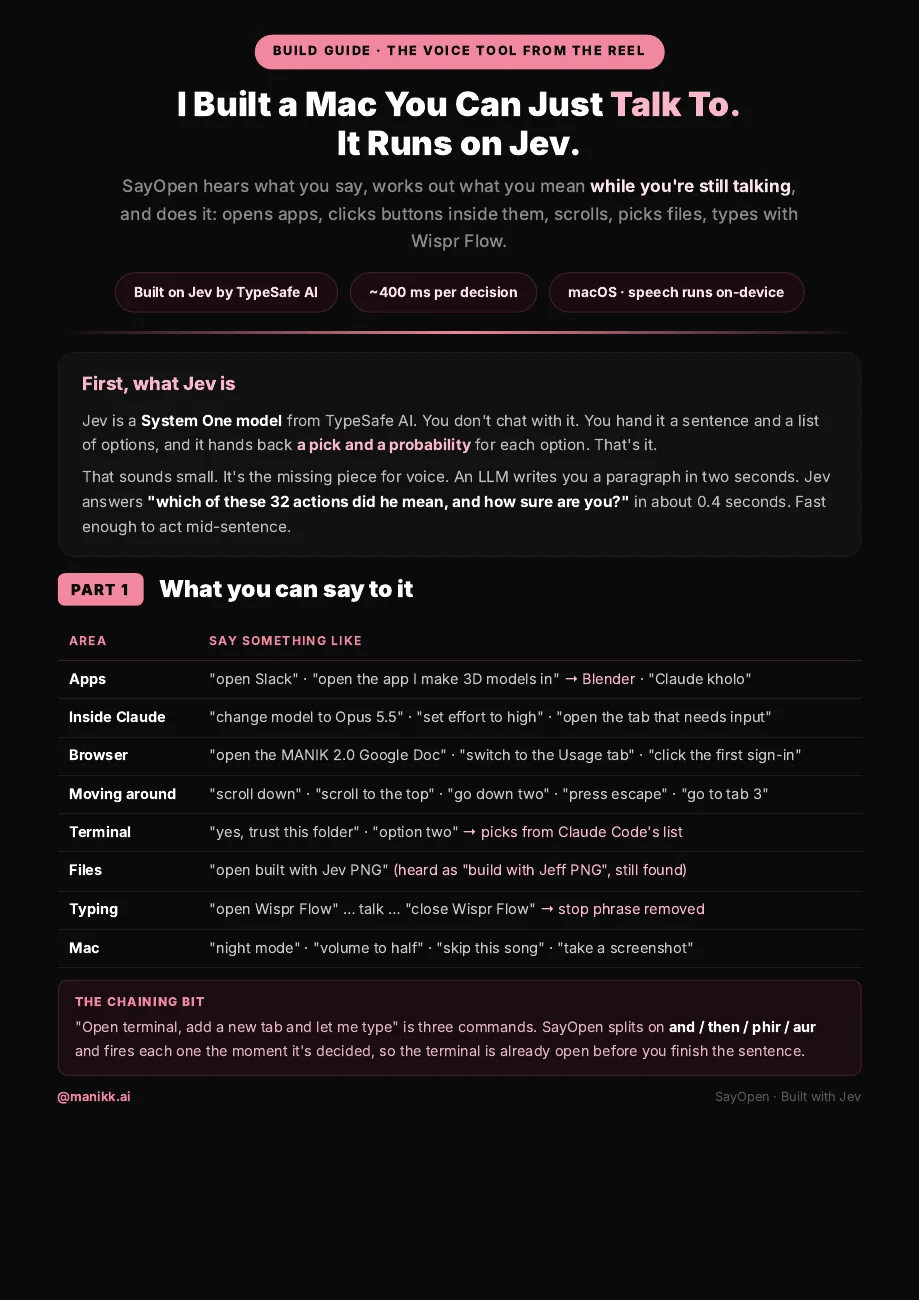
The original four-page Manikk.ai guide, preserved as supplied. Includes the command examples, test table, build walkthrough and fixes.
Download PDF · 695 KBThis article adapts the supplied guide. Measurements are attributed to that build. Product status and interfaces may change.